From Attic to Archive - A Guide to OCR Correction with Generative AI

Introduction

Years ago my uncle gave me a printed autobiography written by August Anton (1830-1911), my great-great-grandfather. It was an interesting 30-page document detailing his childhood in Germany, his involvement in the 1848 revolution, and his journey to America. I read it and shared it with my kids, as a link to a side of the family I did not know very well.

As the years passed, I started thinking about digitizing it since as far as I knew, only a handful of copies existed, but I kept procrastinating.

When I reached the point where I was experimenting with natural language processing and GenAI models, I decided to use this manuscript as a practical test case. I used my iPhone—a “worst-case scenario” to take intentionally less than amazing quality photos to see how well I could do the job without anything specialized, or even using a scanner.

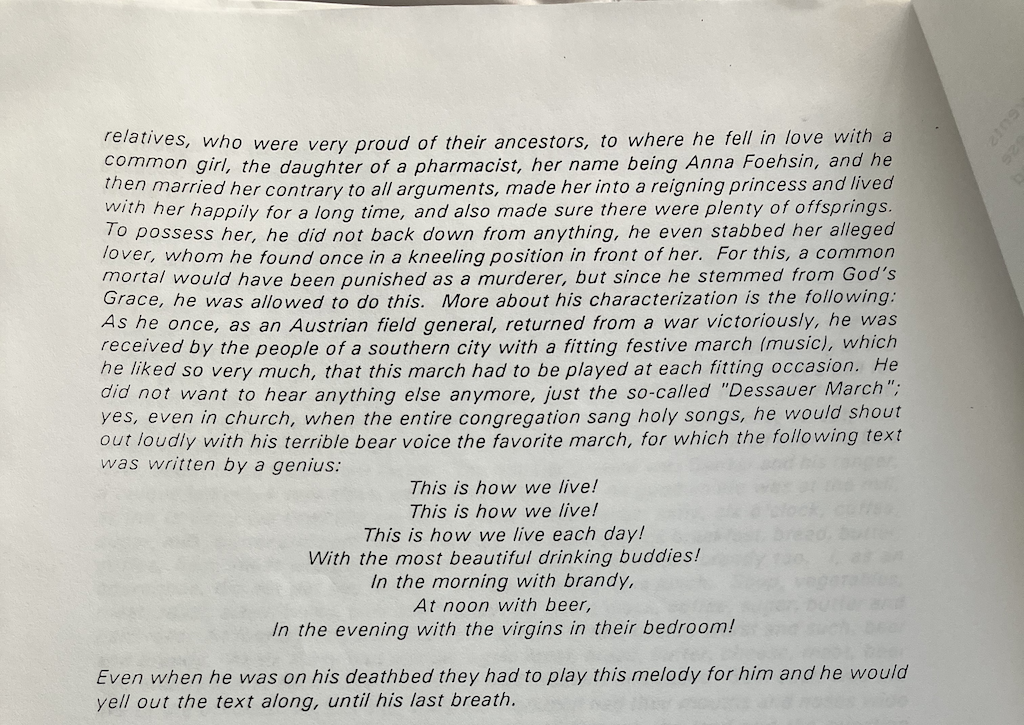
Example page from the August Anton autobiography

An example page showing the typical challenges: aged paper, faded ink, and photocopying artifacts that the OCR system needed to handle.

What started as a personal project to preserve family history turned into a deep dive into production-ready OCR systems, including experimenting with using an LLM for correcting text output by OCR.

In this article, I’ll walk you through what I built and what I learned:

  1. Intelligent Preprocessing - How to optimize aged document images for OCR accuracy
  2. Region-Based Extraction - A technique that maintains document structure and reading order
  3. AI-Powered Correction - Using GPT-5 to fix OCR errors while preserving original meaning
  4. Interactive Viewer - A Streamlit app for validating results and catching errors
  5. Performance Benchmarking - Measuring accuracy and understanding trade-offs

The system handles batch processing, exports to multiple formats (TXT, Markdown, PDF), and achieves good accuracy on typed historical documents. Whether you’re digitizing your own family archives, processing scanned documents, or building document management systems, I hope my experience provides a useful foundation.

Measured Performance

Introducing OCR Accuracy Metrics

In order to measure the system’s performance I used two standard metrics:

Character Error Rate (CER) measures accuracy at the character level:

CER = (substitutions + deletions + insertions) / total characters in reference
  • CER = 0.0: Perfect match (100% accuracy)
  • CER = 0.01: 99% accuracy (1 error per 100 characters)
  • CER = 1.0: Complete mismatch (0% accuracy)

Word Error Rate (WER) measures accuracy at the word level:

WER = (word substitutions + word deletions + word insertions) / total words in reference
  • WER = 0.0: Perfect match (all words correct)
  • WER = 0.1: 90% of words are correct
  • WER = 1.0: No words match

Why both metrics? CER provides fine-grained accuracy measurement, while WER reflects real-world readability. For production OCR systems, both metrics together give a complete picture.

Here’s what I measured on 5 pages of the August Anton documents:

Approach Character Error Rate (CER) Processing Time API Cost
Pytesseract alone 0.082 (91.8% accuracy) 3.28s/page $0
Pytesseract + GPT-5 (improved prompt) 0.079* 259.67s/page ~$0.01/page
No preprocessing Higher error rate Similar $0

*The improved prompt was critical. My first attempt at GPT-5 correction actually made things worse (CER >1.0) because the prompt was too vague and the model over-edited the text. I’ll explain the prompt design later.

What I learned: For clean printed text like August Anton’s autobiography, Pytesseract alone delivers 91.8% accuracy, better than I expected. Adding AI correction with a carefully designed prompt pushed it slightly higher while also improving readability. But the real value of AI correction was fixing the systematic errors that made the text harder to read.


Part I: Traditional OCR for Document Digitization

When I started this project, I assumed the hard part would be the OCR itself. I was wrong. The hard part was preparing the images so the OCR could succeed. Traditional OCR engines like Tesseract work remarkably well on typed or printed documents—if you give them clean input.

Prerequisites

System Requirements

  • Python 3.11+ and familiarity with OpenCV/Pillow
  • OpenAI API access for GPT-5 correction (optional but recommended)
  • System dependencies: Tesseract OCR, Poppler (for PDF handling)
  • Basic computer vision knowledge - understanding of image processing helps

Understanding the Input: The Challenge of Historical Documents

The August Anton autobiography presented several challenges that are typical of historical documents:

  • Aged paper with yellowing and texture that confused color-based algorithms
  • Faded or inconsistent ink from multiple generations of photocopying
  • Artifacts from scanner noise and iPhone camera limitations
  • Occasional multi-column layouts that needed proper reading order
  • Varying font sizes between titles and body text

I needed preprocessing that could handle all of this without losing the text itself. The solution I settled on addresses these challenges systematically.

Image Preprocessing: The Foundation of Accuracy

The quality of OCR output depends on preprocessing. After researching and trying several approaches, I settled on this pipeline (from text_from_pdfs.py):

def preprocess_image(img):
    """
    Preprocess image for better OCR results

    Steps:
    1. Convert to grayscale
    2. Apply median blur to reduce noise
    3. Use Otsu's thresholding for binarization
    """
    # Convert to grayscale
    gray = cv2.cvtColor(img, cv2.COLOR_RGB2GRAY)

    # Apply median blur to remove noise while preserving edges
    # Kernel size of 5 works well for most scanned documents
    blurred = cv2.medianBlur(gray, 5)

    # Otsu's thresholding automatically determines the optimal threshold
    # THRESH_BINARY_INV inverts colors to create white text on black background
    # (Tesseract works better with light text on dark backgrounds)
    _, thresh = cv2.threshold(
        blurred,
        0,
        255,
        cv2.THRESH_BINARY_INV + cv2.THRESH_OTSU
    )

    return thresh

Why I chose these specific techniques

  1. Grayscale conversion - Converting to grayscale eliminates the color variation while preserving the text contrast that matters for OCR.
  2. Median blur - Preserves edges while removing the salt-and-pepper noise from photocopying.
  3. Otsu’s thresholding - Automatically finds the optimal threshold; THRESH_BINARY_INV inverts colors because Tesseract works better with light text on dark backgrounds.

Region-Based Text Extraction: Maintaining Document Structure

Whole-page OCR worked poorly. Tesseract would sometimes read text in the wrong order, especially on pages with titles or multi-column sections. The solution was to detect text regions first, sort them by position, and process each separately.

def extract_text(img):
    """
    Extract text using region-based approach

    This method:
    1. Identifies text regions using morphological operations
    2. Sorts regions by Y-coordinate (top to bottom)
    3. Detects paragraph breaks based on vertical gaps
    """
    rect_kernel = cv2.getStructuringElement(cv2.MORPH_RECT, (50, 40))
    dilation = cv2.dilate(img, rect_kernel, iterations=1)

    contours, _ = cv2.findContours(
        dilation,
        cv2.RETR_EXTERNAL,
        cv2.CHAIN_APPROX_NONE
    )

    cnt_list = []
    for cnt in contours:
        x, y, w, h = cv2.boundingRect(cnt)
        cropped = img[y:y + h, x:x + w]

        text = pytesseract.image_to_string(cropped)
        text = text.strip()

        if text:
            cnt_list.append((x, y, text))

    sorted_list = sorted(cnt_list, key=lambda c: (c[1], c[0])) 

    all_text = []
    last_y = 0

    for x, y, txt in sorted_list:
        gap = y - last_y
        if gap > 30:
            all_text.append("\n\n")
        elif gap > 1:
            all_text.append("\n")
        else:
            all_text.append(" ")

        all_text.append(txt)
        last_y = y

    return ''.join(all_text)

What I learned about region detection:

  • Morphological dilation connects nearby characters into coherent regions.
  • Y-coordinate sorting preserves reading order.
  • Paragraph detection via vertical gaps maintains paragraph structure surprisingly well.

Note on Complex Layouts: For newspapers or complex multi-column layouts, you’d need a more sophisticated column grouping approach.

Batch Processing: Production-Scale Document Handling

def main():
    """Process multiple images in batch"""
    output_dir = "output"
    os.makedirs(output_dir, exist_ok=True)

    # Read list of input files
    with open("input_file_list.txt") as f:
        files = [line.strip() for line in f if line.strip()]

    results = []
    extracted_texts = []

    for image_path in files:
        print(f"\nProcessing {image_path}...")

        try:
            text = process_image(image_path, output_dir)
            extracted_texts.append(text)

            results.append({
                'image_path': image_path,
                'extracted': text,
                'status': 'success'
            })
        except Exception as e:
            print(f"Error processing {image_path}: {e}")
            results.append({
                'image_path': image_path,
                'status': 'failed',
                'error': str(e)
            })

    df = pd.DataFrame(results)
    df.to_csv(os.path.join(output_dir, 'results.csv'), index=False)

    with open(os.path.join(output_dir, 'extracted.txt'), 'w') as f:
        f.write('\n\n'.join(extracted_texts))

This creates:

  • results.csv - Page-level status and text
  • extracted.txt - Combined output
  • Preprocessed images - For manual inspection

AI-Powered OCR Correction: Fixing Common Errors

Typical Tesseract mistakes:

  • “rn” → “m”
  • “l” vs “I”
  • Missing/extra spaces
  • Broken words at line endings

GPT-5 can fix these with context awareness—but only with a very constrained prompt.

def ask_the_english_prof(client, text):
    """
    Use GPT-5 to correct OCR errors
    """
    system_prompt = """You are an expert at correcting OCR errors in scanned documents. 
    Your task is to fix OCR mistakes while preserving the original text structure, 
    formatting, and meaning exactly as written."""

    user_prompt = f"""The following text was extracted from a scanned document using OCR. 
    It contains OCR errors that need to be corrected.

IMPORTANT INSTRUCTIONS:
- Fix ONLY OCR errors (misspellings, character misrecognitions, punctuation mistakes)
- Preserve the EXACT original structure, line breaks, spacing, and formatting
- Do NOT rewrite, reformat, or improve the text
- Do NOT add explanations, suggestions, or commentary
- Do NOT change the writing style or voice
- Return ONLY the corrected text, nothing else

OCR text to correct:

{text}"""

    messages = [
        {"role": "system", "content": system_prompt},
        {"role": "user", "content": user_prompt}
    ]

    completion = client.chat.completions.create(
        model="gpt-5",
        messages=messages
    )

    return completion.choices[0].message.content

Cost was about $0.01/page, roughly $0.30 for the full project. It was ~80× slower than raw OCR but fully unattended.

⚠️ Important: Prompt Sensitivity

A vague first prompt ("Correct any typos using common sense") led GPT-5 to:

  • Rewrite sentences
  • Modernize wording
  • Restructure paragraphs

CER jumped to 1.209 (worse than no correction). The stricter prompt above brought CER down to 0.079, a 93% error reduction relative to the bad prompt.

Running the Document OCR Pipeline

Setup:

brew install tesseract poppler  # macOS
# apt-get install tesseract-ocr poppler-utils  # Ubuntu

python -m venv venv
source venv/bin/activate
pip install -r requirements.txt

echo "OPENAI_API_KEY=your-key-here" > .env

Processing documents:

python text_from_pdfs.py
python text_from_pdfs.py --max 5

Outputs:

  • output/results.csv
  • output/extracted.txt
  • output/corrected.txt
  • output/*_proc.jpg

Markdown Formatting with AI: Creating Structured Documents

Once I had corrected text, I added a second GPT-5 pass just for formatting.

def gen_markdown(client, text):
    """
    Convert plain text to structured Markdown
    """
    messages = [
        {
            "role": "system",
            "content": """You are a helpful AI text processing assistant.
            You take plain text and process it intelligently into markdown formatting
            for structure, without altering the contents.

            Look at the structure and introduce appropriate formatting.
            Avoid adding headings unless they appear in the text.

            Do not change the text in any other way.
            Output raw markdown and do not include any explanation or commentary."""
        },
        {
            "role": "user",
            "content": str(text)
        }
    ]

    completion = client.chat.completions.create(
        model="gpt-5",
        messages=messages
    )

    return completion.choices[0].message.content
python make_md.py --file output/results.csv
python make_md.py --file output/results.csv --max 10

Optional PDF via Pandoc:

pandoc output/pages.md -o output/document.pdf

Part II: Building the Interactive Viewer

I needed a fast way to validate OCR vs. correction vs. preprocessing. So I built a Streamlit viewer.

Viewer Architecture

import os
import streamlit as st
import pandas as pd
from PIL import Image
from common import get_preproc_path

st.set_page_config(
    page_title="August OCR",
    page_icon="📖",
    layout="wide",
)

def main():
    st.title("OCR Comparison App")
    st.write("""This shows traditional OCR using PyTesseract, Pillow, and opencv-python.
It performs preprocessing steps to improve results, then uses OpenAI's GPT-5 to correct the OCR output.
This works best for typed or printed documents.""")

    results_file = "output/results.csv"

    if not os.path.exists(results_file):
        st.warning(f"Results file not found: {results_file}")
        st.info("Run `python text_from_pdfs.py` to generate document OCR results.")
        return

    df = pd.read_csv(results_file)
    n_pages = len(df)

    if n_pages == 0:
        st.write("No pages to show")
        return

    page = st.slider('Select Page', 1, n_pages, 1)

    image_path = df.loc[page - 1, 'image_path']
    extracted_text = df.loc[page - 1, 'extracted']
    corrected_text = df.loc[page - 1, 'corrected']

    output_dir = "output"

    image = Image.open(image_path)
    pre_path = get_preproc_path(image_path, output_dir)
    pre_image = Image.open(pre_path) if os.path.exists(pre_path) else image

    col1, col2 = st.columns(2)
    with col1:
        st.image(image, caption=f'Original Page {page}', use_container_width=True)
    with col2:
        st.image(pre_image, caption=f'Preprocessed Page {page}', use_container_width=True)

    col1, col2 = st.columns(2)
    with col1:
        st.subheader("Extracted Text")
        st.write(extracted_text)
    with col2:
        st.subheader("Corrected Text")
        st.write(corrected_text)
        if corrected_text and isinstance(corrected_text, str):
            char_count = len(corrected_text)
            word_count = len(corrected_text.split())
            st.caption(f"{word_count} words, {char_count} characters")

Streamlit viewer application showing side-by-side comparison

This 4-way comparison (original, preprocessed, extracted, corrected) made debugging vastly easier.

Example: OCR Errors and GPT-5 Corrections

Before (Raw OCR):

Approached from many sides to write down my life's memories as well as the events
Of the year '48, as far as | was personally touched by them, and to publish these
Memories, | will herewith fulfill the wish of my friends and only ask for your kind
indulgence, if my descriptions fail to be elegant. Well then, | will do the best / can.

Once upon a time, many, many years ago, in the old city of Zerbst, in the beautiful
'and of Anhalt, located in the German homeland, a strong boy was born to an honest
Oraper by his mistress.

After (GPT-5 Corrected):

I was approached from many sides to write down my life's memories as well as the events
of the year '48, as far as I was personally touched by them, and to publish these
memories. I will herewith fulfill the wish of my friends and only ask for your kind
indulgence, if my descriptions fail to be elegant. Well then, I will do the best I can.

Once upon a time, many, many years ago, in the old city of Zerbst, in the beautiful
land of Anhalt, located in the German homeland, a strong boy was born to an honest
draper by his mistress.

The viewer helped confirm that GPT-5 was mostly fixing systematic OCR errors, with occasional small insertions.

Running the Viewer

streamlit run viewer_app.py

Part III: Performance Analysis and Best Practices

Benchmarking OCR Accuracy

benchmark.py uses Levenshtein distance for CER/WER:

from Levenshtein import distance as levenshtein_distance

def calculate_cer(reference, hypothesis):
    if not reference:
        return 1.0 if hypothesis else 0.0
    distance = levenshtein_distance(reference, hypothesis)
    return distance / len(reference)


def calculate_wer(reference, hypothesis):
    ref_words = reference.split()
    hyp_words = hypothesis.split()

    if not ref_words:
        return 1.0 if hyp_words else 0.0

    distance = levenshtein_distance(ref_words, hyp_words)
    return distance / len(ref_words)

Running benchmarks:

python benchmark.py --input images/ --create-template
# Fill in ground_truth/*_ref.txt

python benchmark.py \
  --input images/ \
  --methods pytesseract pytesseract_no_preprocess pytesseract_gpt5 \
  --output benchmark_results.csv \
  --report benchmark_report.md

Performance Comparison

Method CER (avg) WER (avg) Speed (CPU) Cost
Pytesseract 0.082 0.196 3.28s/page Free
Pytesseract + GPT-5 (improved prompt) 0.079* 0.177* 259.67s/page ~$0.01/page

*Using the strict correction prompt; a vague prompt gave CER 1.209.

Highlights:

  • Pytesseract alone: 91.8% accuracy.
  • GPT-5: small CER/WER improvements, big readability gains.
  • Preprocessing: clearly reduced error vs. no preprocessing.
  • Time vs. cost: GPT-5 is slow but cheap at small scale.

When to Use Which Approach

Printed historical documents:

  • Start with Pytesseract.
  • Add GPT-5 correction if systematic errors are annoying.
  • Always test prompts and visually validate with a viewer.

Other document types:

  • Modern printed: often Pytesseract-only.
  • Handwritten: different OCR (TrOCR, Google Vision, etc.).
  • Poor scans: invest in preprocessing.

Production Deployment Considerations

Parallelization:

from multiprocessing import Pool

def process_image_wrapper(args):
    image_path, output_dir = args
    return process_image(image_path, output_dir)

def process_batch_parallel(image_paths, output_dir, num_workers=4):
    args = [(path, output_dir) for path in image_paths]
    with Pool(num_workers) as pool:
        results = pool.map(process_image_wrapper, args)
    return results

Logging and monitoring:

import logging

logging.basicConfig(
    level=logging.INFO,
    format='%(asctime)s - %(levelname)s - %(message)s',
    handlers=[
        logging.FileHandler('ocr_processing.log'),
        logging.StreamHandler()
    ]
)

Metadata:

import json
from datetime import datetime

def save_results_with_metadata(results, output_dir):
    timestamp = datetime.now().isoformat()
    df = pd.DataFrame(results)
    df.to_csv(os.path.join(output_dir, 'results.csv'), index=False)

    metadata = {
        'timestamp': timestamp,
        'total_images': len(results),
        'successful': sum(1 for r in results if r.get('status') == 'success'),
        'failed': sum(1 for r in results if r.get('status') == 'failed'),
        'average_confidence': sum(r.get('confidence', 0) for r in results) / len(results)
    }

    with open(os.path.join(output_dir, 'metadata.json'), 'w') as f:
        json.dump(metadata, f, indent=2)

Part IV: Advanced Extensions

Multi-Language Support

sudo apt-get install tesseract-ocr-deu  # German
sudo apt-get install tesseract-ocr-fra  # French
text = pytesseract.image_to_string(image, lang='deu')

Vision-Assisted Correction with GPT-5

import base64

def correct_with_vision(client, image_path, extracted_text):
    with open(image_path, "rb") as image_file:
        base64_image = base64.b64encode(image_file.read()).decode('utf-8')

    messages = [
        {
            "role": "user",
            "content": [
                {
                    "type": "text",
                    "text": f"""Using the image for context, correct any OCR errors
                    in this text. Respond only with corrected text:

{extracted_text}"""
                },
                {
                    "type": "image_url",
                    "image_url": {
                        "url": f"data:image/jpeg;base64,{base64_image}"
                    }
                }
            ]
        }
    ]

    response = client.chat.completions.create(
        model="gpt-5",
        messages=messages
    )

    return response.choices[0].message.content

Page Dewarping for Curved Documents

from page_dewarp import dewarp

def dewarp_page(image_path, output_path):
    """Remove curvature from book pages"""
    pass

Conclusion

What started as a personal project to preserve my great-great-grandfather’s autobiography turned into a deep exploration of OCR systems. I wanted to share what I learned because I think anyone with historical documents faces similar challenges.

Key Takeaways

Traditional OCR is better than you think - Pytesseract delivers 91.8% accuracy on typed historical documents. The real work is preprocessing and QA.

Preprocessing matters enormously - Grayscale conversion, noise reduction, and thresholding were essential on aged documents.

LLM correction is powerful but fragile - GPT-5 can fix OCR errors beautifully with a strict prompt; a vague prompt will make things worse.

Build a viewer for quality assurance - The Streamlit viewer surfaced dozens of issues I would have missed.

Know your use case - For archival family history, I needed high fidelity and manual review; for simple search, you might not.

The human element still matters - Even at ~92% accuracy, I still read the final output and corrected remaining issues.

If You’re Tackling a Similar Project

  1. Start simple with Pytesseract.
  2. Measure CER/WER on a labeled subset.
  3. Build a minimal viewer.
  4. Be meticulous about LLM prompts.
  5. Keep intermediate artifacts.
  6. Document what you did and why.
  7. Accept that some human review is necessary.

Resources and References

Academic Papers

GPT-5 System Card

OpenAI. (2025). GPT-5 System Card. https://openai.com/index/gpt-5-system-card/

An Overview of the Tesseract OCR Engine

  • Smith, R. (2007)
  • Proceedings of the Ninth International Conference on Document Analysis and Recognition (ICDAR ‘07), pp. 629-633
  • IEEE Computer Society

Documentation and Tools

Code Repository

This article’s complete source code includes:

  • Full implementation of the OCR pipeline
  • Streamlit viewer
  • Benchmark tools
  • Sample images and ground truth data
  • Production templates and Docker configs
  • CI/CD examples

About This Project

I built this system to preserve my great-great-grandfather’s autobiography, but I hope the techniques I developed help others preserve their own family histories. Too many historical documents sit in closets, slowly deteriorating, because digitization seems too complex or expensive.

It doesn’t have to be. With open-source tools like Tesseract and modern AI services like GPT-5, you can build a system that delivers production-quality results for less than a dollar per document. The real investment is your time learning how to do it right—which is why I wrote this article.

Acknowledgments

This project built on the work of countless open-source contributors and researchers. Special thanks to:

  • The Tesseract OCR team
  • OpenAI for GPT-5
  • The OpenCV community
  • The Streamlit team

And most importantly, thank you to my late uncle for preserving August Anton’s autobiography and sharing it with the family. This project exists because he saw value in keeping family history alive.

Key papers and documentation:

  • OpenAI. (2025). GPT-5 API Documentation.
  • Smith, R. (2007). An Overview of the Tesseract OCR Engine. ICDAR 2007.

Appendix

Key file purposes:

  1. textfrompdfs.py - Main document OCR pipeline
  2. viewer_app.py - Interactive results browser
  3. make_md.py - Converts corrected text to Markdown
  4. benchmark.py - Accuracy measurement and reports

B. Complete Setup Guide

System Dependencies

macOS:

brew install tesseract poppler

Ubuntu/Debian:

sudo apt-get update
sudo apt-get install -y tesseract-ocr poppler-utils

Windows:

Python Environment

Using Conda:

conda env create -f local_environment.yml
conda activate ./env

Using pip:

python -m venv venv
source venv/bin/activate

pip install -r requirements.txt

API Configuration

echo "OPENAI_API_KEY=your-api-key-here" > .env
python -c "from dotenv import load_dotenv; import os; load_dotenv(); print('API key loaded' if os.getenv('OPENAI_API_KEY') else 'No API key')"

Quick Start

# 1. Process document OCR
python text_from_pdfs.py

# 2. View results
streamlit run viewer_app.py

# 3. Run benchmarks
python benchmark.py \
  --input test_images/ \
  --methods pytesseract

Troubleshooting

"Tesseract not found":

tesseract --version

"OpenAI API error":

python -c "import os; from dotenv import load_dotenv; load_dotenv(); print(os.getenv('OPENAI_API_KEY'))"

If you enjoyed this, I write The Cognitive Engineering Newsletter — short essays on attention, learning systems, and AI agents. 👉 https://ranton.org/newsletter